Show Product Details
- Add a Product Form Drawer
- Create a Product Form
- Create a Form Data Object
- Bind the Form and the FDO
- Create a Repository Interface
- Populate the Form
- Complete Code for This Step
- Next Steps
In the previous step, you implemented sorting and filtering in the product catalog. However, the database contains more information about each product than what is visible in the grid.
In this step, you’ll create a drawer and a form for showing the product details. You’ll then add a Form Data Object (FDO) and bind it to the form. Finally, you’ll fetch the FDO and populate the form whenever the user selects an item in the product catalog grid.
|
Tip
|
More Information Available
This step is based on the Add a Form guide. Read the guide if you want more detailed information about working with forms in Vaadin.
|
Add a Product Form Drawer
You’ll display the product details in a drawer next to the grid. Start by creating the drawer component - ProductFormDrawer - in the com.example.product package:
Source code
ProductFormDrawer.java
package com.example.product;

import com.vaadin.flow.component.Composite;
import com.vaadin.flow.component.html.H2;
import com.vaadin.flow.component.orderedlayout.VerticalLayout;

class ProductFormDrawer extends Composite<VerticalLayout> { 1

    ProductFormDrawer() {
        var header = new H2("Product Details");

        var layout = getContent(); 2
        layout.add(header);
    }
}-
Create a composite component that encapsulates a
VerticalLayout. -
The
getContent()method returns the encapsulated layout.
Next, add the drawer to ProductCatalogView, turning it into a master-detail view. You’ll use the Master-Detail Layout component for this. It has a master area, which shows the product list, and a detail area, which shows the drawer. When there’s enough room, it shows the areas side by side, with a border between them. When there isn’t, it shows the detail area as an overlay on top of the master area. See Add a Master-Detail View for more about this pattern.
This requires two steps:
-
Make
ProductCatalogViewextendMasterDetailLayoutinstead ofVerticalLayout. -
Put the search field and the grid in the master area, and the drawer in the detail area.
Change the code of the ProductCatalogView as follows:
Source code
ProductCatalogView.java
package com.example.product;

import com.vaadin.flow.component.grid.ColumnTextAlign;
import com.vaadin.flow.component.grid.Grid;
import com.vaadin.flow.component.icon.VaadinIcon;
import com.vaadin.flow.component.masterdetaillayout.MasterDetailLayout;
import com.vaadin.flow.component.orderedlayout.VerticalLayout;
import com.vaadin.flow.component.textfield.TextField;
import com.vaadin.flow.data.value.ValueChangeMode;
import com.vaadin.flow.router.PageTitle;
import com.vaadin.flow.router.Route;

@Route("")
@PageTitle("Product Catalog")
class ProductCatalogView extends MasterDetailLayout {

    ProductCatalogView(ProductCatalogItemRepository repository) {
        // Create components
        var searchField = new TextField();
        searchField.setPlaceholder("Search");
        searchField.setPrefixComponent(VaadinIcon.SEARCH.create());
        searchField.setValueChangeMode(ValueChangeMode.LAZY);

        var grid = new Grid<ProductCatalogItem>();
        grid.addColumn(ProductCatalogItem::name)
            .setHeader("Name")
            .setSortProperty(ProductCatalogItem.SORT_PROPERTY_NAME);
        grid.addColumn(ProductCatalogItem::price)
            .setHeader("Price")
            .setTextAlign(ColumnTextAlign.END)
            .setSortProperty(ProductCatalogItem.SORT_PROPERTY_PRICE);
        grid.addColumn(ProductCatalogItem::description)
            .setHeader("Description")
            .setSortProperty(ProductCatalogItem.SORT_PROPERTY_DESCRIPTION);
        grid.addColumn(ProductCatalogItem::category)
            .setHeader("Category")
            .setSortProperty(ProductCatalogItem.SORT_PROPERTY_CATEGORY);
        grid.addColumn(ProductCatalogItem::brand)
            .setHeader("Brand")
            .setSortProperty(ProductCatalogItem.SORT_PROPERTY_BRAND);
        grid.setItemsPageable(pageable -> repository
            .findByNameContainingIgnoreCase(searchField.getValue(),
                pageable)
            .getContent()
        );

        var drawer = new ProductFormDrawer();

        searchField.addValueChangeListener(e ->
                grid.getDataProvider().refreshAll());


        // Layout view
        setSizeFull();
        setDetailSize("300px"); 1
        setExpandMaster(true); 2

        var listLayout = new VerticalLayout(searchField, grid); 3
        listLayout.setSizeFull();
        grid.setSizeFull();

        setMaster(listLayout); 4
        setDetail(drawer); 5
    }
}-
Make the detail area, and thereby the drawer, 300 pixels wide.
-
Let the master area grow to fill the space that the drawer doesn’t use.
-
Wrap the search field and grid in a
VerticalLayoutto create the list part of the master-detail view. -
Show the list layout in the master area.
-
Show the drawer in the detail area. For now, the drawer is always visible. You’ll change this later in this step.
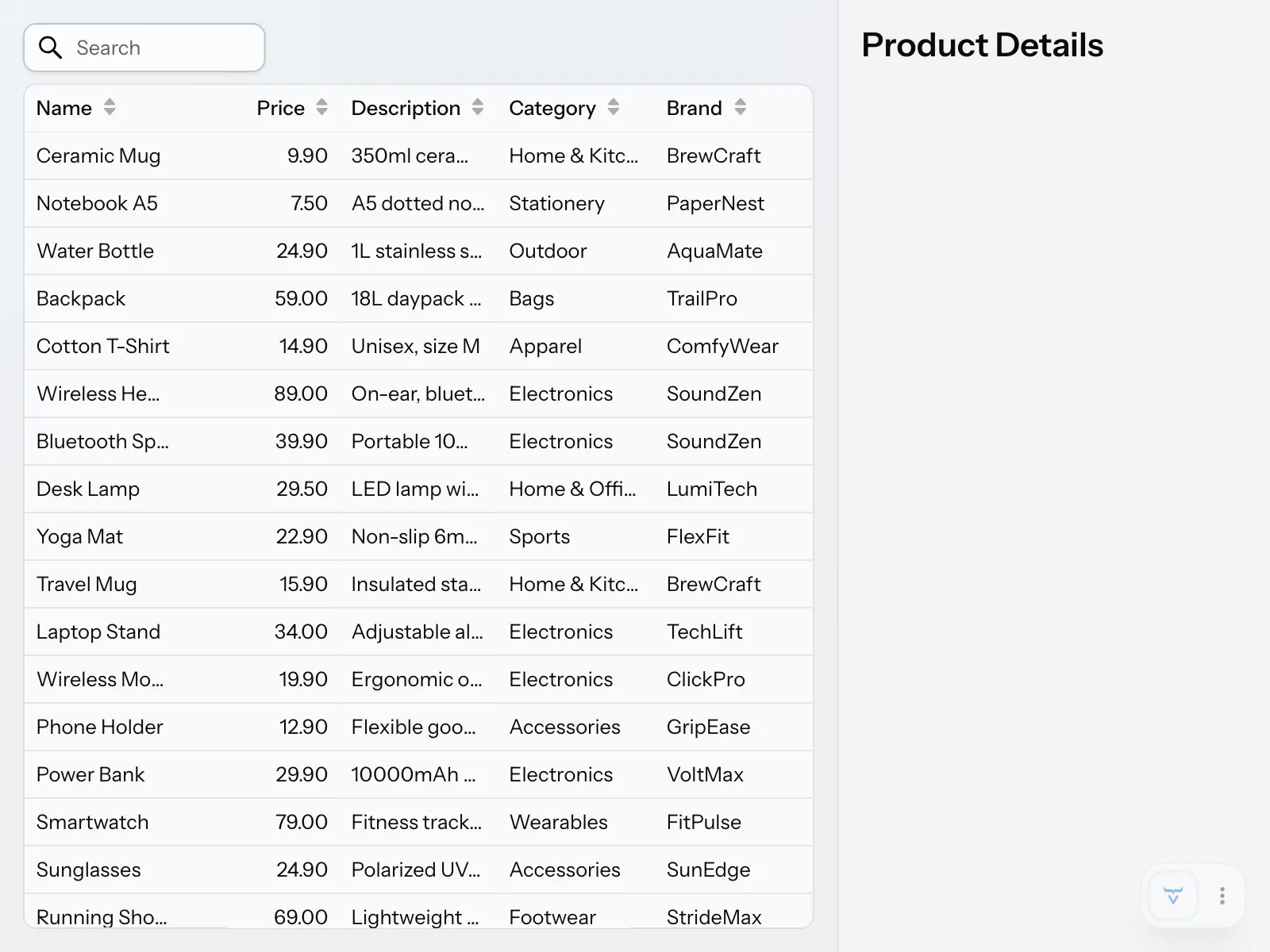
The view should now look like this:
Create a Product Form
Now that you have the drawer in place, it’s time to add a form to display the product details. Create a new class called ProductForm in the com.example.product package:
Source code
ProductForm.java
package com.example.product;

import com.vaadin.flow.component.Composite;
import com.vaadin.flow.component.datepicker.DatePicker;
import com.vaadin.flow.component.formlayout.FormLayout;
import com.vaadin.flow.component.textfield.BigDecimalField;
import com.vaadin.flow.component.textfield.TextArea;
import com.vaadin.flow.component.textfield.TextField;

class ProductForm extends Composite<FormLayout>  {

    ProductForm() {
        // Create components
        var nameField = new TextField("Name");
        var descriptionField = new TextArea("Description");
        var categoryField = new TextField("Category");
        var brandField = new TextField("Brand");
        var skuField = new TextField("SKU");
        var releaseDateField = new DatePicker("Release Date");
        var priceField = new BigDecimalField("Price");
        var discountField = new BigDecimalField("Discount");

        // Layout form
        var layout = getContent();
        layout.add(nameField);
        layout.add(descriptionField);
        layout.add(categoryField);
        layout.add(brandField);
        layout.add(skuField);
        layout.add(releaseDateField);
        layout.add(priceField);
        layout.add(discountField);
    }
}
Then add it to the drawer:
Source code
Java
package com.example.product;

import com.vaadin.flow.component.Composite;
import com.vaadin.flow.component.html.H2;
import com.vaadin.flow.component.orderedlayout.Scroller;
import com.vaadin.flow.component.orderedlayout.VerticalLayout;

class ProductFormDrawer extends Composite<VerticalLayout> {

    ProductFormDrawer() {
        var header = new H2("Product Details");
        var form = new ProductForm();

        var layout = getContent();
        layout.add(header);
        layout.add(new Scroller(form)); 1
        layout.setHeightFull(); 2
    }
}-
The
Scrollercomponent makes the form scrollable in case it doesn’t fit in the drawer. -
Make the drawer as tall as the detail area. Otherwise, the drawer grows with the form, and the
Scrollerhas nothing to scroll.
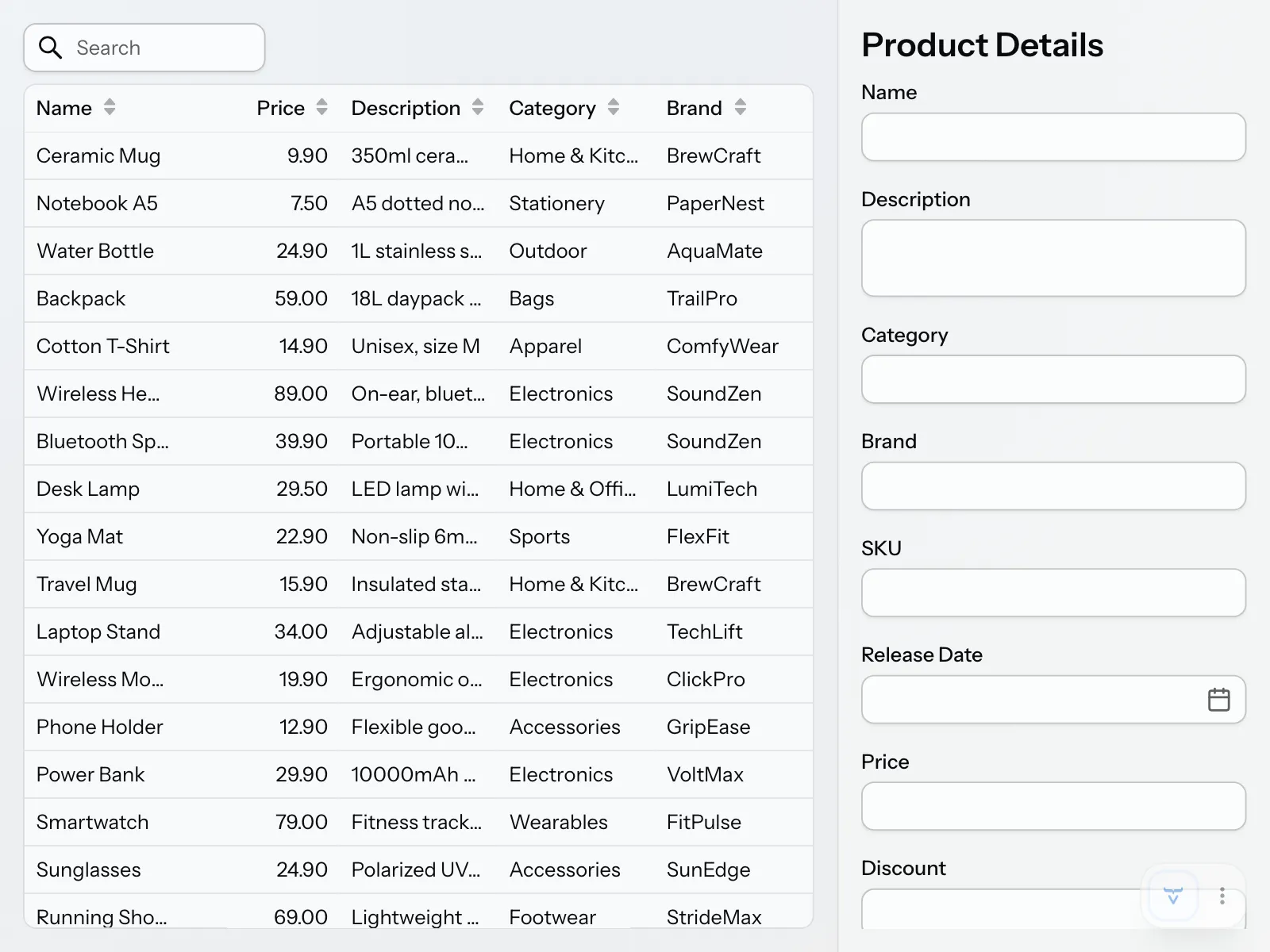
The view should now look like this:
Create a Form Data Object
If you compare the form fields with the grid, you’ll notice that the form has more fields than the grid displays. That means you can’t use ProductCatalogItem for the form data. Instead, you need to create a new Form Data Object (FDO).
Since you’ll also be using this FDO to edit products, you should make it a mutable JavaBean and not a record. Create a new ProductDetails class like this:
Source code
ProductDetails.java
package com.example.product;

import org.springframework.data.annotation.Id;
import org.springframework.data.annotation.Version;
import org.springframework.data.relational.core.mapping.Table;

import java.math.BigDecimal;
import java.time.LocalDate;

@Table("PRODUCTS")
class ProductDetails {

    @Id
    private Long productId;
    @Version
    private Long version; 1
    private String name;
    private String description;
    private String category;
    private String brand;
    private String sku;
    private LocalDate releaseDate;
    private BigDecimal price;
    private BigDecimal discount;

    public Long getProductId() { 2
        return productId;
    }

    public Long getVersion() {
        return version;
    }

    public String getName() {
        return name;
    }

    public void setName(String name) {
        this.name = name;
    }

    public String getDescription() {
        return description;
    }

    public void setDescription(String description) {
        this.description = description;
    }

    public String getCategory() {
        return category;
    }

    public void setCategory(String category) {
        this.category = category;
    }

    public String getBrand() {
        return brand;
    }

    public void setBrand(String brand) {
        this.brand = brand;
    }

    public String getSku() {
        return sku;
    }

    public void setSku(String sku) {
        this.sku = sku;
    }

    public LocalDate getReleaseDate() {
        return releaseDate;
    }

    public void setReleaseDate(LocalDate releaseDate) {
        this.releaseDate = releaseDate;
    }

    public BigDecimal getPrice() {
        return price;
    }

    public void setPrice(BigDecimal price) {
        this.price = price;
    }

    public BigDecimal getDiscount() {
        return discount;
    }

    public void setDiscount(BigDecimal discount) {
        this.discount = discount;
    }
}-
This field is used for optimistic locking. You’ll use it later when implementing editing.
-
You shouldn’t need setters for
productIdandversionas Spring Data sets these fields automatically. Unlike inProductCatalogItem, the ID is aLongrather than along, because a new product doesn’t have an ID until it’s saved.
|
Note
|
Why Is the FDO Also an Entity?
ProductDetails is both the FDO and a Spring Data entity, mapped to the PRODUCTS table. The form edits the entity directly. This is a pragmatic choice. The form and the table have the same structure, with one field for each column. They also change together, since a new column means a new field. A separate FDO would only copy the same values back and forth. Introduce one when the form and the stored data start to differ, for example when the form combines data from several tables, or when the entity contains business logic. The Add a Service guide describes when to pass entities to the user interface, and when to use separate objects instead.
|
Bind the Form and the FDO
Next, you have to bind the form and the FDO so that the data shows up in the correct fields. For this, you’ll use a Binder. Change the ProductForm as follows:
Source code
ProductForm.java
package com.example.product;

import com.vaadin.flow.component.Composite;
import com.vaadin.flow.component.datepicker.DatePicker;
import com.vaadin.flow.component.formlayout.FormLayout;
import com.vaadin.flow.component.textfield.BigDecimalField;
import com.vaadin.flow.component.textfield.TextArea;
import com.vaadin.flow.component.textfield.TextField;
import com.vaadin.flow.data.binder.Binder;
import org.jspecify.annotations.Nullable; 1

class ProductForm extends Composite<FormLayout>  {

    private final Binder<ProductDetails> binder;

    ProductForm() {
        // Create components
        var nameField = new TextField("Name");
        var descriptionField = new TextArea("Description");
        var categoryField = new TextField("Category");
        var brandField = new TextField("Brand");
        var skuField = new TextField("SKU");
        var releaseDateField = new DatePicker("Release Date");
        var priceField = new BigDecimalField("Price");
        var discountField = new BigDecimalField("Discount");

        // Layout form
        var layout = getContent();
        layout.add(nameField);
        layout.add(descriptionField);
        layout.add(categoryField);
        layout.add(brandField);
        layout.add(skuField);
        layout.add(releaseDateField);
        layout.add(priceField);
        layout.add(discountField);

        // Bind fields
        binder = new Binder<>();
        binder.forField(nameField)
              .bind(ProductDetails::getName,
                    ProductDetails::setName); 2
        binder.forField(descriptionField)
              .bind(ProductDetails::getDescription,
                    ProductDetails::setDescription);
        binder.forField(categoryField)
              .bind(ProductDetails::getCategory,
                    ProductDetails::setCategory);
        binder.forField(brandField)
              .bind(ProductDetails::getBrand,
                    ProductDetails::setBrand);
        binder.forField(skuField)
              .bind(ProductDetails::getSku,
                    ProductDetails::setSku);
        binder.forField(releaseDateField)
              .bind(ProductDetails::getReleaseDate,
                    ProductDetails::setReleaseDate);
        binder.forField(priceField)
              .bind(ProductDetails::getPrice,
                    ProductDetails::setPrice);
        binder.forField(discountField)
              .bind(ProductDetails::getDiscount,
                    ProductDetails::setDiscount);
        binder.setReadOnly(true); 3
    }

    public void setFormDataObject(@Nullable ProductDetails productDetails) { 4
        binder.setBean(productDetails); 5
    }
}-
It’s a good idea, although not required, to use JSpecify’s
@Nullableannotation to mark parameters that can benull. -
Every field in
ProductFormis bound to the corresponding JavaBean property inProductDetails. -
Make all fields read-only as you’re only using the form to view data for now.
-
Passing
nullclears the form. -
You’re using the
Binderin write-through mode. See the Fields & Bindings guide for details.
Create a Repository Interface
To fetch the product details from the database, you’ll again use a Spring Data repository. Create a new interface named ProductDetailsRepository:
Source code
ProductDetailsRepository.java
package com.example.product;

import org.springframework.data.repository.CrudRepository;

interface ProductDetailsRepository
    extends CrudRepository<ProductDetails, Long> {
}
As for ProductCatalogItemRepository, Spring Data provides the implementation of the interface.
Populate the Form
You now have all the building blocks needed to show product details in the drawer. Start by adding an API to ProductFormDrawer for setting a ProductDetails:
Source code
ProductFormDrawer.java
package com.example.product;

import com.vaadin.flow.component.Composite;
import com.vaadin.flow.component.html.H2;
import com.vaadin.flow.component.orderedlayout.Scroller;
import com.vaadin.flow.component.orderedlayout.VerticalLayout;

class ProductFormDrawer extends Composite<VerticalLayout> {

    private final ProductForm form;

    ProductFormDrawer() {
        var header = new H2("Product Details");
        form = new ProductForm(); 1

        var layout = getContent();
        layout.add(header);
        layout.add(new Scroller(form));
        layout.setHeightFull();
    }

    public void setProductDetails(ProductDetails productDetails) {
        form.setFormDataObject(productDetails);
    }
}-
Because you’re calling a method on the form from
setProductDetails()below, the form can no longer be a local variable.
Next, you’ll add a selection listener to the product grid. Whenever a user selects an item, you’ll fetch the details from the ProductDetailsRepository and show them in the drawer. If no item is selected, you’ll remove the drawer from the detail area. Master-Detail Layout shows the detail area only when it contains something, so this hides the drawer.
Update ProductCatalogView as follows. Also remove the setDetail(drawer) call from the layout code. From now on, the selection listener decides when to show the drawer.
Source code
ProductCatalogView.java
package com.example.product;

import com.vaadin.flow.component.grid.ColumnTextAlign;
import com.vaadin.flow.component.grid.Grid;
import com.vaadin.flow.component.icon.VaadinIcon;
import com.vaadin.flow.component.masterdetaillayout.MasterDetailLayout;
import com.vaadin.flow.component.orderedlayout.VerticalLayout;
import com.vaadin.flow.component.textfield.TextField;
import com.vaadin.flow.data.value.ValueChangeMode;
import com.vaadin.flow.router.PageTitle;
import com.vaadin.flow.router.Route;

@Route("")
@PageTitle("Product Catalog")
class ProductCatalogView extends MasterDetailLayout {

    ProductCatalogView(ProductCatalogItemRepository repository,
                       ProductDetailsRepository productDetailsRepository) { 1
        // Create components
        var searchField = new TextField();
        searchField.setPlaceholder("Search");
        searchField.setPrefixComponent(VaadinIcon.SEARCH.create());
        searchField.setValueChangeMode(ValueChangeMode.LAZY);

        var grid = new Grid<ProductCatalogItem>();
        grid.addColumn(ProductCatalogItem::name)
            .setHeader("Name")
            .setSortProperty(ProductCatalogItem.SORT_PROPERTY_NAME);
        grid.addColumn(ProductCatalogItem::price)
            .setHeader("Price")
            .setTextAlign(ColumnTextAlign.END)
            .setSortProperty(ProductCatalogItem.SORT_PROPERTY_PRICE);
        grid.addColumn(ProductCatalogItem::description)
            .setHeader("Description")
            .setSortProperty(ProductCatalogItem.SORT_PROPERTY_DESCRIPTION);
        grid.addColumn(ProductCatalogItem::category)
            .setHeader("Category")
            .setSortProperty(ProductCatalogItem.SORT_PROPERTY_CATEGORY);
        grid.addColumn(ProductCatalogItem::brand)
            .setHeader("Brand")
            .setSortProperty(ProductCatalogItem.SORT_PROPERTY_BRAND);
        grid.setItemsPageable(pageable -> repository
            .findByNameContainingIgnoreCase(searchField.getValue(),
                pageable)
            .getContent()
        );

        var drawer = new ProductFormDrawer();

        searchField.addValueChangeListener(e ->
                grid.getDataProvider().refreshAll());

        grid.addSelectionListener(e -> {
            var productDetails = e.getFirstSelectedItem() 2
                .flatMap(item -> productDetailsRepository
                    .findById(item.productId())); 3
            productDetails.ifPresent(drawer::setProductDetails); 4
            setDetail(productDetails.isPresent() ? drawer : null); 5
        });
        addBackdropClickListener(e -> grid.deselectAll()); 6
        addDetailEscapePressListener(e -> grid.deselectAll());

        // Layout view
        setSizeFull();
        setDetailSize("300px");
        setExpandMaster(true);

        var listLayout = new VerticalLayout(searchField, grid);
        listLayout.setSizeFull();
        grid.setSizeFull();

        setMaster(listLayout);
    }
}-
Inject
ProductDetailsRepositoryso that you can call it from the selection listener. The view still only reads data, so it can keep calling the repositories directly. -
getFirstSelectedItem()returns anOptionalthat contains the selected item if there is one. The name comes from the fact that Grid supports selecting multiple items if you configure it to. -
findById()also returns anOptional. The result is empty if no item is selected, or if the product details can’t be found in the database. -
Populate the drawer, if there are details to show.
-
Show the drawer in the detail area if there are details to show. Otherwise, remove it, which hides the detail area.
-
When the drawer appears as an overlay, the user can close it by clicking outside it, or by pressing Esc. Both clear the grid selection, which hides the drawer through the selection listener.
Restart the application, since you added an entity and a repository interface. The view should now look like this:
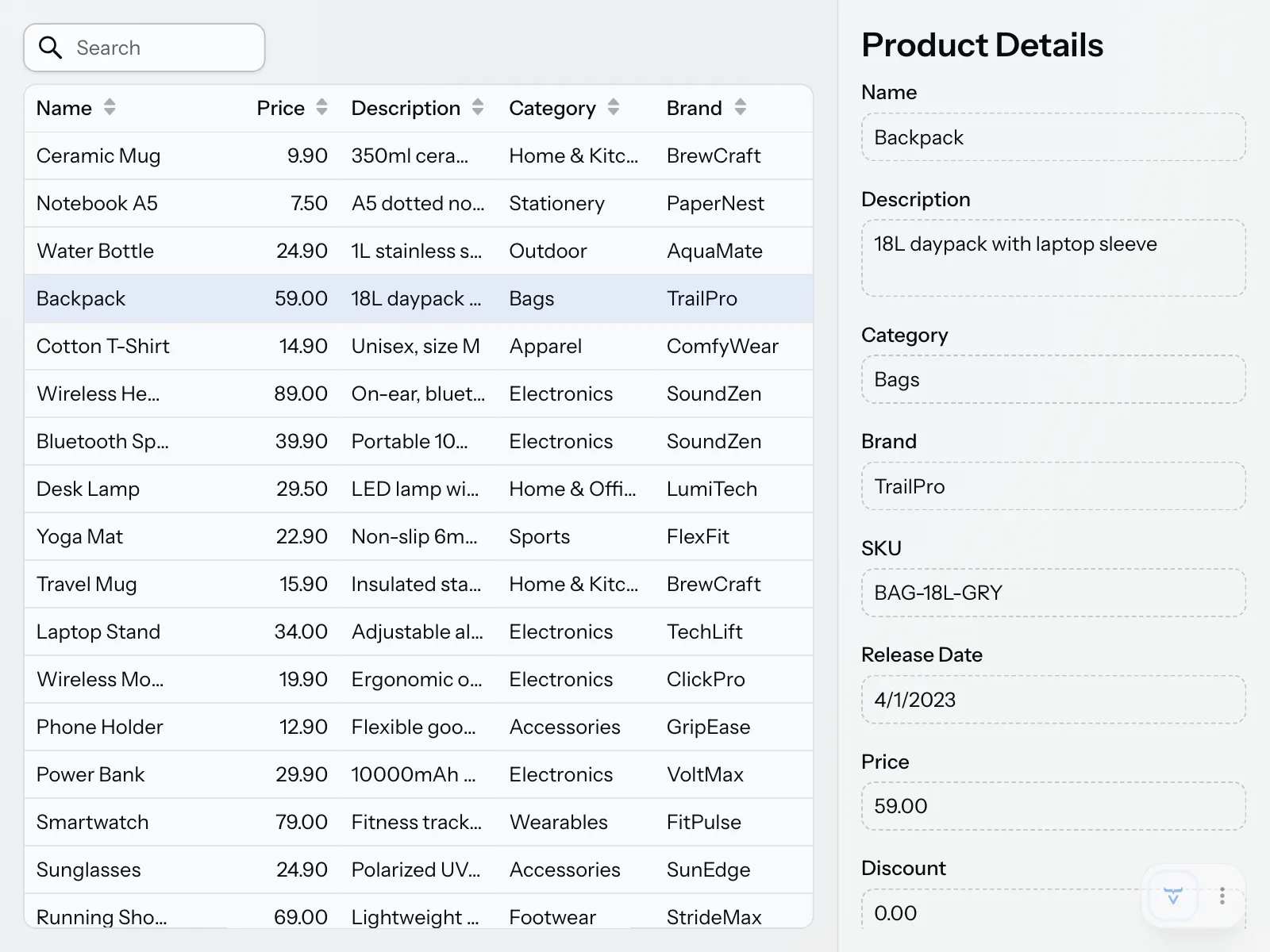
If you select items in the grid, their details show up in the drawer. If you clear the selection, the drawer disappears and the grid takes up the whole view.
Now make the browser window narrower. When the list and the drawer no longer fit side by side, the drawer slides in on top of the list instead. Close it by clicking outside it or by pressing Esc. You didn’t have to write any code for this, since Master-Detail Layout handles it for you.
Complete Code for This Step
If your application doesn’t behave as described, compare your files with these listings. They show every class in the application as it should look at the end of this step.
ProductCatalogView.java
Source code
Java
package com.example.product;

import com.vaadin.flow.component.grid.ColumnTextAlign;
import com.vaadin.flow.component.grid.Grid;
import com.vaadin.flow.component.icon.VaadinIcon;
import com.vaadin.flow.component.masterdetaillayout.MasterDetailLayout;
import com.vaadin.flow.component.orderedlayout.VerticalLayout;
import com.vaadin.flow.component.textfield.TextField;
import com.vaadin.flow.data.value.ValueChangeMode;
import com.vaadin.flow.router.PageTitle;
import com.vaadin.flow.router.Route;

@Route("")
@PageTitle("Product Catalog")
class ProductCatalogView extends MasterDetailLayout {

    ProductCatalogView(ProductCatalogItemRepository repository,
                       ProductDetailsRepository productDetailsRepository) {
        // Create components
        var searchField = new TextField();
        searchField.setPlaceholder("Search");
        searchField.setPrefixComponent(VaadinIcon.SEARCH.create());
        searchField.setValueChangeMode(ValueChangeMode.LAZY);

        var grid = new Grid<ProductCatalogItem>();
        grid.addColumn(ProductCatalogItem::name)
            .setHeader("Name")
            .setSortProperty(ProductCatalogItem.SORT_PROPERTY_NAME);
        grid.addColumn(ProductCatalogItem::price)
            .setHeader("Price")
            .setTextAlign(ColumnTextAlign.END)
            .setSortProperty(ProductCatalogItem.SORT_PROPERTY_PRICE);
        grid.addColumn(ProductCatalogItem::description)
            .setHeader("Description")
            .setSortProperty(ProductCatalogItem.SORT_PROPERTY_DESCRIPTION);
        grid.addColumn(ProductCatalogItem::category)
            .setHeader("Category")
            .setSortProperty(ProductCatalogItem.SORT_PROPERTY_CATEGORY);
        grid.addColumn(ProductCatalogItem::brand)
            .setHeader("Brand")
            .setSortProperty(ProductCatalogItem.SORT_PROPERTY_BRAND);
        grid.setItemsPageable(pageable -> repository
            .findByNameContainingIgnoreCase(searchField.getValue(),
                pageable)
            .getContent()
        );

        var drawer = new ProductFormDrawer();

        searchField.addValueChangeListener(e ->
                grid.getDataProvider().refreshAll());

        grid.addSelectionListener(e -> {
            var productDetails = e.getFirstSelectedItem()
                .flatMap(item -> productDetailsRepository
                    .findById(item.productId()));
            productDetails.ifPresent(drawer::setProductDetails);
            setDetail(productDetails.isPresent() ? drawer : null);
        });
        addBackdropClickListener(e -> grid.deselectAll());
        addDetailEscapePressListener(e -> grid.deselectAll());

        // Layout view
        setSizeFull();
        setDetailSize("300px");
        setExpandMaster(true);

        var listLayout = new VerticalLayout(searchField, grid);
        listLayout.setSizeFull();
        grid.setSizeFull();

        setMaster(listLayout);
    }
}
ProductCatalogItem.java
Source code
Java
package com.example.product;

import org.springframework.data.annotation.Id;
import org.springframework.data.relational.core.mapping.Table;

import java.math.BigDecimal;

@Table("PRODUCTS")
record ProductCatalogItem(
        @Id long productId,
        String name,
        String description,
        String category,
        String brand,
        BigDecimal price
) {
    static final String SORT_PROPERTY_NAME = "name";
    static final String SORT_PROPERTY_PRICE = "price";
    static final String SORT_PROPERTY_DESCRIPTION = "description";
    static final String SORT_PROPERTY_CATEGORY = "category";
    static final String SORT_PROPERTY_BRAND = "brand";
}
ProductCatalogItemRepository.java
Source code
Java
package com.example.product;

import org.springframework.data.domain.Pageable;
import org.springframework.data.domain.Slice;

import org.springframework.data.repository.PagingAndSortingRepository;

interface ProductCatalogItemRepository
    extends PagingAndSortingRepository<ProductCatalogItem, Long> {

    Slice<ProductCatalogItem> findByNameContainingIgnoreCase(String name,
        Pageable pageable);
}
ProductDetails.java
Source code
Java
package com.example.product;

import org.springframework.data.annotation.Id;
import org.springframework.data.annotation.Version;
import org.springframework.data.relational.core.mapping.Table;

import java.math.BigDecimal;
import java.time.LocalDate;

@Table("PRODUCTS")
class ProductDetails {

    @Id
    private Long productId;
    @Version
    private Long version;
    private String name;
    private String description;
    private String category;
    private String brand;
    private String sku;
    private LocalDate releaseDate;
    private BigDecimal price;
    private BigDecimal discount;

    public Long getProductId() {
        return productId;
    }

    public Long getVersion() {
        return version;
    }

    public String getName() {
        return name;
    }

    public void setName(String name) {
        this.name = name;
    }

    public String getDescription() {
        return description;
    }

    public void setDescription(String description) {
        this.description = description;
    }

    public String getCategory() {
        return category;
    }

    public void setCategory(String category) {
        this.category = category;
    }

    public String getBrand() {
        return brand;
    }

    public void setBrand(String brand) {
        this.brand = brand;
    }

    public String getSku() {
        return sku;
    }

    public void setSku(String sku) {
        this.sku = sku;
    }

    public LocalDate getReleaseDate() {
        return releaseDate;
    }

    public void setReleaseDate(LocalDate releaseDate) {
        this.releaseDate = releaseDate;
    }

    public BigDecimal getPrice() {
        return price;
    }

    public void setPrice(BigDecimal price) {
        this.price = price;
    }

    public BigDecimal getDiscount() {
        return discount;
    }

    public void setDiscount(BigDecimal discount) {
        this.discount = discount;
    }
}
ProductDetailsRepository.java
Source code
Java
package com.example.product;

import org.springframework.data.repository.CrudRepository;

interface ProductDetailsRepository
    extends CrudRepository<ProductDetails, Long> {
}
ProductForm.java
Source code
Java
package com.example.product;

import com.vaadin.flow.component.Composite;
import com.vaadin.flow.component.datepicker.DatePicker;
import com.vaadin.flow.component.formlayout.FormLayout;
import com.vaadin.flow.component.textfield.BigDecimalField;
import com.vaadin.flow.component.textfield.TextArea;
import com.vaadin.flow.component.textfield.TextField;
import com.vaadin.flow.data.binder.Binder;
import org.jspecify.annotations.Nullable;

class ProductForm extends Composite<FormLayout>  {

    private final Binder<ProductDetails> binder;

    ProductForm() {
        // Create components
        var nameField = new TextField("Name");
        var descriptionField = new TextArea("Description");
        var categoryField = new TextField("Category");
        var brandField = new TextField("Brand");
        var skuField = new TextField("SKU");
        var releaseDateField = new DatePicker("Release Date");
        var priceField = new BigDecimalField("Price");
        var discountField = new BigDecimalField("Discount");

        // Layout form
        var layout = getContent();
        layout.add(nameField);
        layout.add(descriptionField);
        layout.add(categoryField);
        layout.add(brandField);
        layout.add(skuField);
        layout.add(releaseDateField);
        layout.add(priceField);
        layout.add(discountField);

        // Bind fields
        binder = new Binder<>();
        binder.forField(nameField)
              .bind(ProductDetails::getName,
                    ProductDetails::setName);
        binder.forField(descriptionField)
              .bind(ProductDetails::getDescription,
                    ProductDetails::setDescription);
        binder.forField(categoryField)
              .bind(ProductDetails::getCategory,
                    ProductDetails::setCategory);
        binder.forField(brandField)
              .bind(ProductDetails::getBrand,
                    ProductDetails::setBrand);
        binder.forField(skuField)
              .bind(ProductDetails::getSku,
                    ProductDetails::setSku);
        binder.forField(releaseDateField)
              .bind(ProductDetails::getReleaseDate,
                    ProductDetails::setReleaseDate);
        binder.forField(priceField)
              .bind(ProductDetails::getPrice,
                    ProductDetails::setPrice);
        binder.forField(discountField)
              .bind(ProductDetails::getDiscount,
                    ProductDetails::setDiscount);
        binder.setReadOnly(true);
    }

    public void setFormDataObject(@Nullable ProductDetails productDetails) {
        binder.setBean(productDetails);
    }
}
ProductFormDrawer.java
Source code
Java
package com.example.product;

import com.vaadin.flow.component.Composite;
import com.vaadin.flow.component.html.H2;
import com.vaadin.flow.component.orderedlayout.Scroller;
import com.vaadin.flow.component.orderedlayout.VerticalLayout;

class ProductFormDrawer extends Composite<VerticalLayout> {

    private final ProductForm form;

    ProductFormDrawer() {
        var header = new H2("Product Details");
        form = new ProductForm();

        var layout = getContent();
        layout.add(header);
        layout.add(new Scroller(form));
        layout.setHeightFull();
    }

    public void setProductDetails(ProductDetails productDetails) {
        form.setFormDataObject(productDetails);
    }
}
Next Steps
You have now implemented a simple master-detail view in Vaadin. In the next step, you’ll add support for editing and saving product details. Proceed to the Edit Product Details step to continue the tutorial.