Quick Start Tutorial
- Before You Start
- Bootstrap a Vaadin Project
- Create Your First View
- Run the Application
- Add Input
- Update a Component
- Call a Java Library
- Make a Production Build
- Next Steps
This is a quick tutorial for developers trying out Vaadin for the first time. It walks you through creating a simple Vaadin application from scratch, demonstrating the core concepts along the way. It takes about 10 minutes to complete.
Vaadin allows you to build modern web applications in 100% Java. You don’t need to know HTML, CSS, or JavaScript to get started.
Before You Start
You need two things installed on your computer:
-
A Java Development Kit (JDK), version 21 or newer. If you don’t have one, download and install Eclipse Temurin for your operating system.
-
A Java IDE. If you don’t have one, download and install IntelliJ IDEA. The free Community Edition is enough for this tutorial.
If you already have a JDK and an IDE, you’re ready to go. Other JDK distributions and IDEs work too. See the Development Environment guide for options.
Bootstrap a Vaadin Project
Click the button below to download a minimal Vaadin project skeleton:
After downloading the project, unzip it and open the project directory in your IDE. In IntelliJ IDEA, select , pick the unzipped directory, and click Trust Project if asked. For other IDEs, see the import guides for Visual Studio Code, Eclipse IDE, and NetBeans.
|
Note
|
This is a Spring Boot Project
The downloaded project skeleton is a Spring Boot project. The Starters documentation page describes how to create Vaadin projects using different technology stacks.
|
Create Your First View
In Vaadin, a "view" is a Java class that defines the user interface and behavior of a specific screen in your application. It is associated with a URL route, allowing users to navigate to it via a web browser.
Create a new Java class named MainView in the com.example package, next to the Application class:
Source code
MainView.java
package com.example;

import com.vaadin.flow.component.button.Button;
import com.vaadin.flow.component.html.H1;
import com.vaadin.flow.component.html.Paragraph;
import com.vaadin.flow.component.orderedlayout.VerticalLayout;
import com.vaadin.flow.router.PageTitle;
import com.vaadin.flow.router.Route;

@Route("") 1
@PageTitle("Hello, Vaadin!") 2
public class MainView extends VerticalLayout { 3
    public MainView() {
        add(new H1("Hello, Vaadin!")); 4
        add(new Button("Say Hello", event -> add(new Paragraph("Hello, Vaadin!")))); 5
    }
}-
The
@Routeannotation turns this class into a view, mapping it to the root URL ("/") of the application. -
The
@PageTitleannotation sets the title of the web page when this view is displayed. -
MainViewextendsVerticalLayout, which is a layout component that arranges its children vertically. -
H1is a component that corresponds to the HTML<h1>element (a top-level heading). -
This line creates a new Button with the label "Say Hello". When clicked, it triggers a lambda function that adds a new
Paragraphwith the message "Hello, Vaadin!" to the view.
This programming model is typical for Vaadin applications. You construct the UI from components, and define behavior using event listeners. If you have used Swing or JavaFX before, this should feel familiar.
Run the Application
Open a terminal in the project directory and start the application with the Maven Wrapper that comes with the project:
Source code
macOS and Linux
./mvnw spring-boot:runSource code
Windows
mvnw spring-boot:runThe first startup may take a while as Maven and npm download the required dependencies. Once initialization is complete, the application is available at: http://localhost:8080
|
Tip
|
Faster Feedback with Hotswap
When you run the application from the command line, you have to stop it with Ctrl+C and start it again after every code change. To skip the restarts, run the application from your IDE with hotswap enabled instead. The Vaadin plugin for your IDE applies your changes to the running application within seconds. Installing the plugin takes a few minutes, so you can do it now or after you have finished this tutorial. See the instructions for IntelliJ IDEA, Visual Studio Code, Eclipse IDE, or NetBeans. |
|
Tip
|
Are you behind a proxy?
Vaadin uses Node.js to download the frontend toolchain during the build. If you are behind a proxy, you may need to configure Node to use that. See the reference guide for details.
|
Click the button. It should look like this:
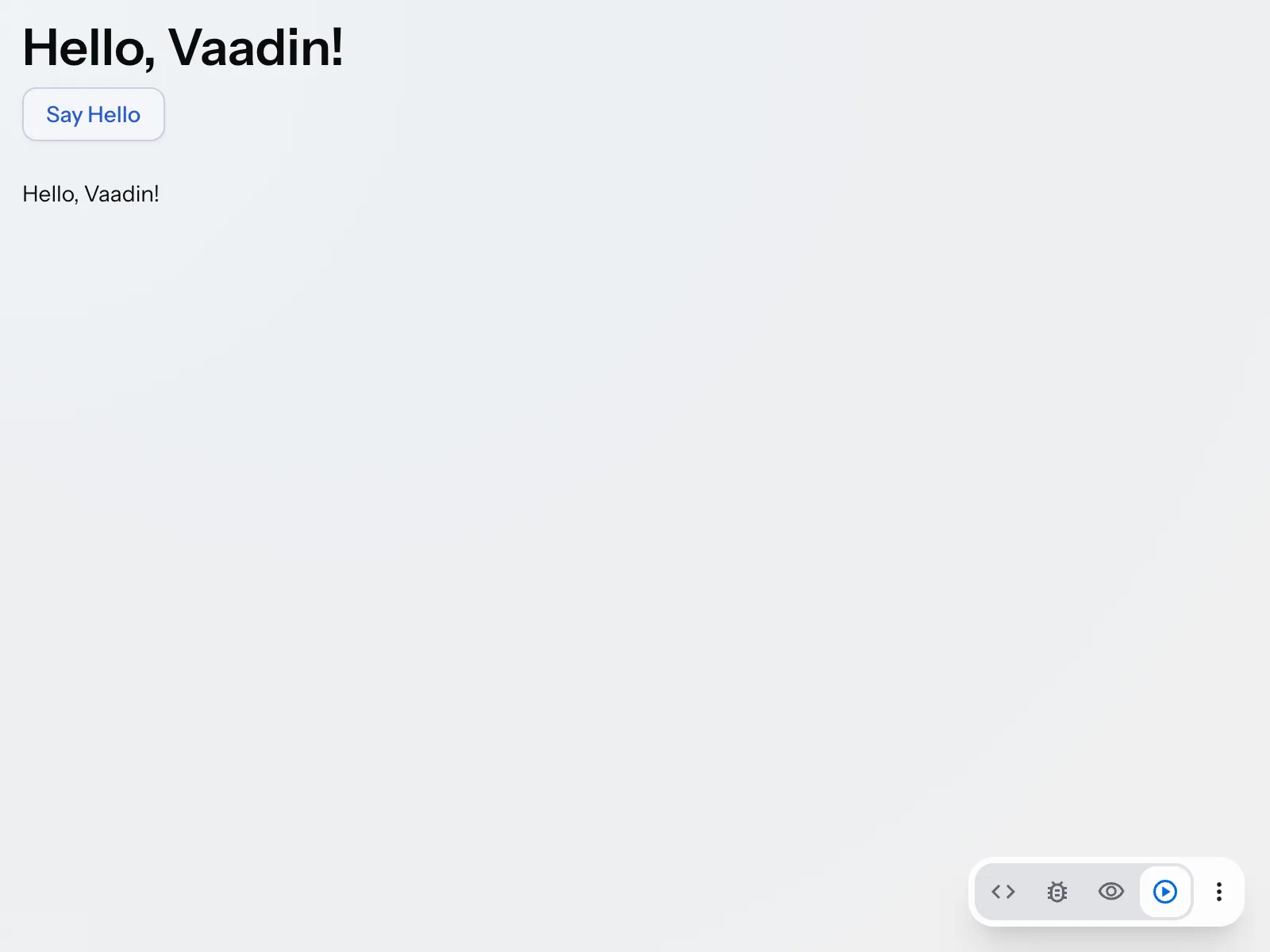
The paragraph is added to the end of the view, below the button. If you click multiple times, new paragraphs are added each time.
The toolbar in the bottom-right corner is the Vaadin Copilot toolbar, which is visible when running in development mode. Vaadin Copilot is a visual development tool that runs in the browser, on top of your application. It’s unrelated to GitHub Copilot. See the Vaadin Copilot documentation for details.
Add Input
Next, you’ll add a TextField to allow user input, and modify the button to greet the user by name. Update the MainView class as follows:
Source code
MainView.java
package com.example;

import com.vaadin.flow.component.button.Button;
import com.vaadin.flow.component.html.H1;
import com.vaadin.flow.component.html.Paragraph;
import com.vaadin.flow.component.orderedlayout.VerticalLayout;
import com.vaadin.flow.component.textfield.TextField;
import com.vaadin.flow.router.PageTitle;
import com.vaadin.flow.router.Route;

@Route("")
@PageTitle("Hello, Vaadin!")
public class MainView extends VerticalLayout {
    public MainView() {
        add(new H1("Hello, Vaadin!"));
        var nameField = new TextField("What is your name?"); 1
        add(nameField);
        add(new Button("Say Hello", event ->
            add(new Paragraph("Hello, %s!".formatted(nameField.getValue()))) 2
        ));
    }
}-
Creates a
TextFieldcomponent with a label prompting the user for their name. -
Adds a new
Paragraphwith a personalized greeting message to the view.
Restart the application unless you’re using hotswap, then reload the browser. The view should now look like this:
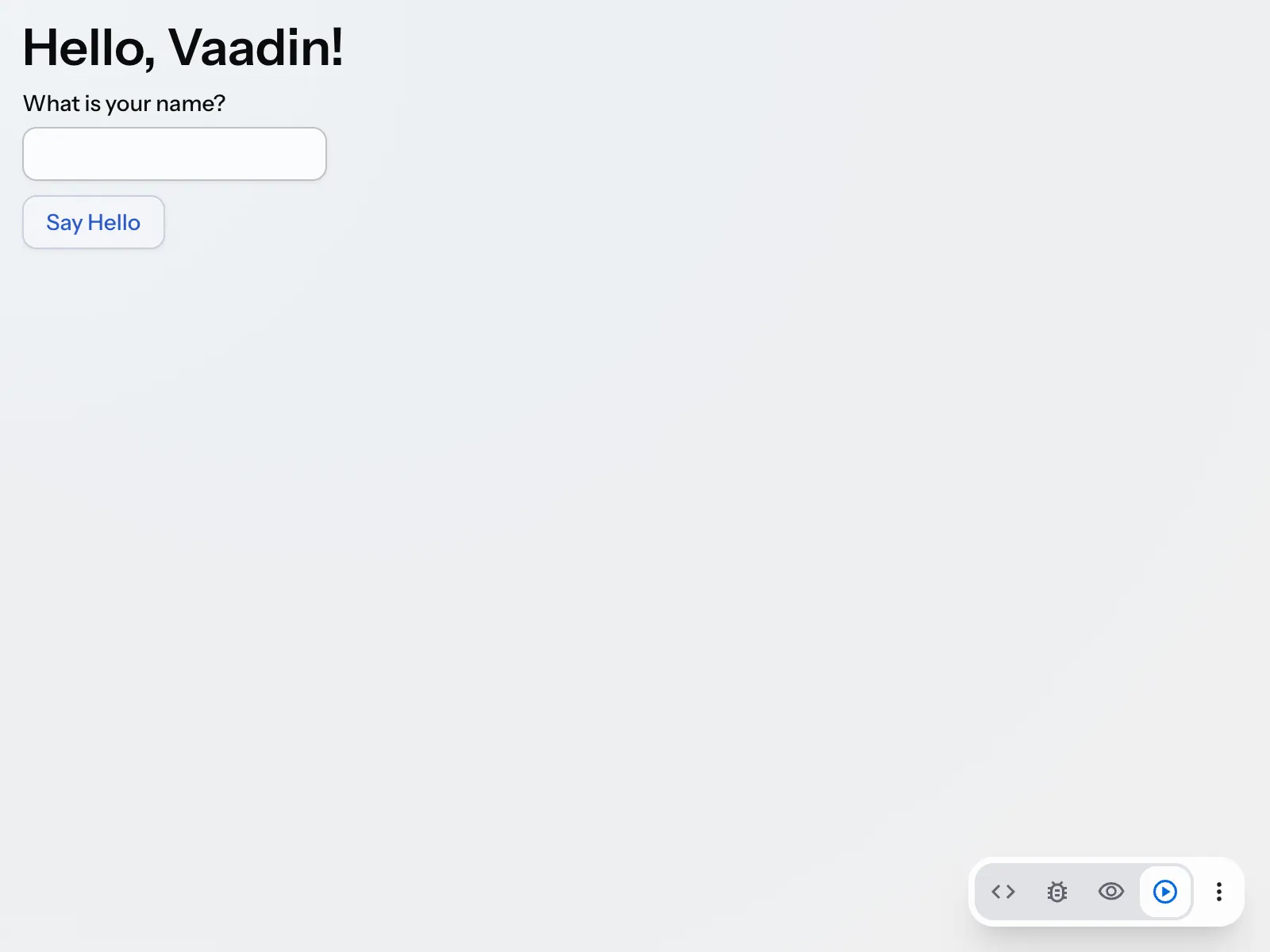
Enter your name in the text field and click the button. The added paragraph greets you using the name you provided.
|
Important
|
What If the Name Contains HTML?
Try entering HTML or JavaScript code in the text field. The paragraph shows it as plain text instead of running it. Vaadin doesn’t change what the user types. Instead, it escapes any text that you set on a component, such as the text of a Paragraph, and the browser never interprets that text as HTML. This protects the application against cross-site scripting (XSS). See Write HTML for the cases where you have to sanitize content yourself.
|
Update a Component
The problem with the current implementation is that each time you click the button, a new paragraph is added. Instead, you want to add a single Paragraph and update its content on every click. Modify the MainView class as follows:
Source code
MainView.java
package com.example;

import com.vaadin.flow.component.button.Button;
import com.vaadin.flow.component.html.H1;
import com.vaadin.flow.component.html.Paragraph;
import com.vaadin.flow.component.orderedlayout.VerticalLayout;
import com.vaadin.flow.component.textfield.TextField;
import com.vaadin.flow.router.PageTitle;
import com.vaadin.flow.router.Route;

@Route("")
@PageTitle("Hello, Vaadin!")
public class MainView extends VerticalLayout {
    public MainView() {
        add(new H1("Hello, Vaadin!"));
        var nameField = new TextField("What is your name?");
        add(nameField);
        var greeting = new Paragraph(); 1
        add(greeting);
        add(new Button("Say Hello", event ->
            greeting.setText("Hello, %s!".formatted(nameField.getValue())) 2
        ));
    }
}-
Creates a
Paragraphcomponent to hold the greeting message and adds it to the view above the button. -
Updates the text of the existing
Paragraphinstead of adding a new one.
If you now try the application again, you’ll see that there is some extra space between the text field and the button:
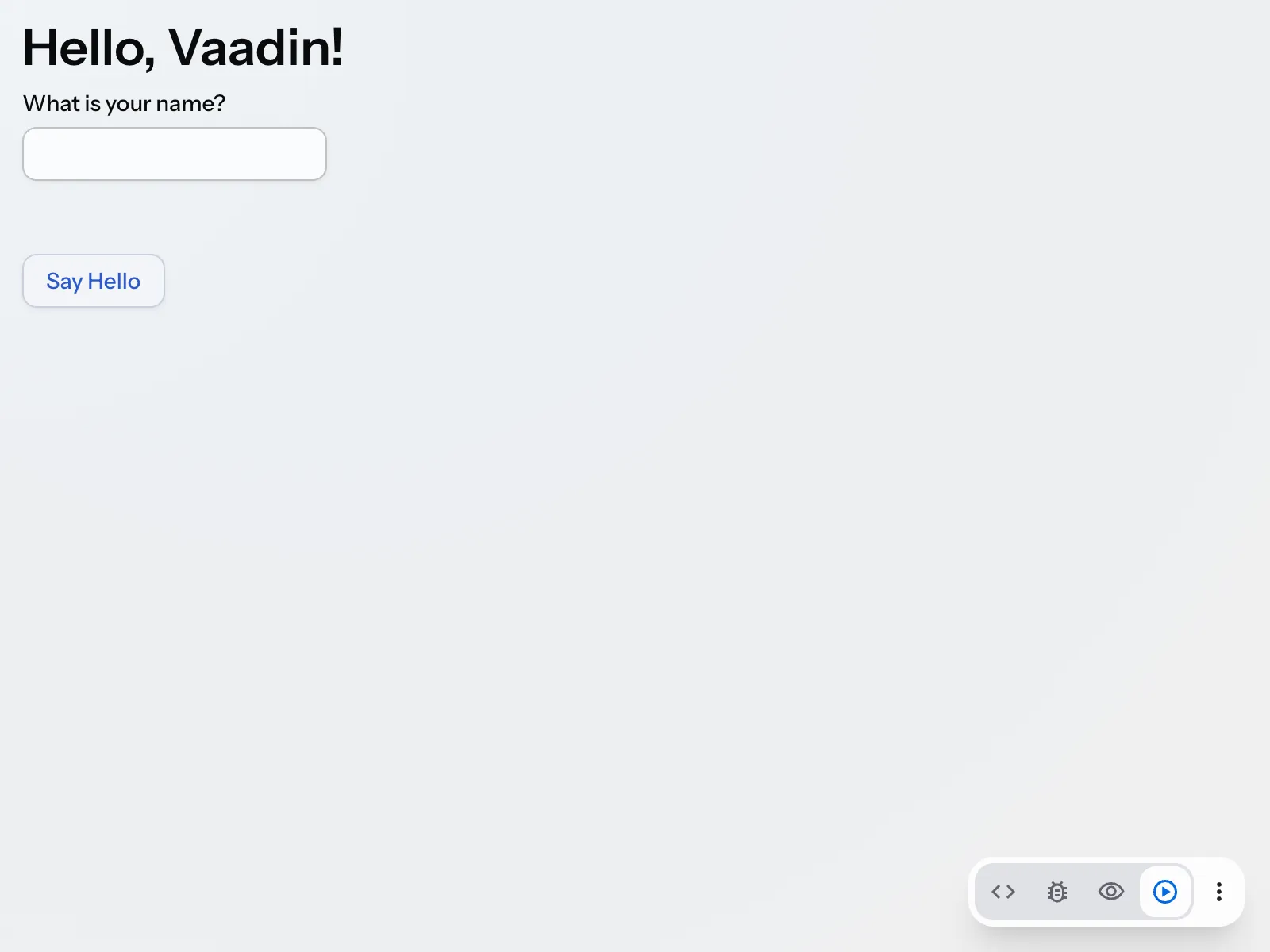
This is because the Paragraph component is initially empty but still occupies space in the layout. You can fix that by hiding the Paragraph when it has no content. Update the code as follows:
Source code
MainView.java
package com.example;

import com.vaadin.flow.component.button.Button;
import com.vaadin.flow.component.html.H1;
import com.vaadin.flow.component.html.Paragraph;
import com.vaadin.flow.component.orderedlayout.VerticalLayout;
import com.vaadin.flow.component.textfield.TextField;
import com.vaadin.flow.router.PageTitle;
import com.vaadin.flow.router.Route;

@Route("")
@PageTitle("Hello, Vaadin!")
public class MainView extends VerticalLayout {
    public MainView() {
        add(new H1("Hello, Vaadin!"));
        var nameField = new TextField("What is your name?");
        add(nameField);
        var greeting = new Paragraph();
        greeting.setVisible(false); 1
        add(greeting);
        add(new Button("Say Hello", event -> {
            greeting.setText("Hello, %s!".formatted(nameField.getValue()));
            greeting.setVisible(!nameField.isEmpty()); 2
        }));
    }
}-
Hides the
Paragraphcomponent initially since it has no content. -
Sets the visibility of the
Paragraphbased on whether theTextFieldis empty or not. By default, a text field is empty if its value is an empty string.
If you now enter your name and click the button, you’ll see that the greeting message updates in place each time you click the button. If you clear the text field and click the button, the greeting message disappears and no extra space is occupied.
Call a Java Library
A Vaadin application is a regular Java application. Because the user interface runs on the server side, you can call any Java library directly from your UI code. You’ll now try this by adding a QR code to your application using the popular zxing library.
Start by adding the following dependency to your pom.xml file inside the <dependencies> section:
Source code
XML
<dependency>
    <groupId>com.google.zxing</groupId>
    <artifactId>javase</artifactId>
    <version>3.5.3</version>
</dependency>
Import the dependency by refreshing your Maven project in the IDE. Next, add a new button to the MainView class that generates and displays a QR code for the entered name:
Source code
MainView.java
package com.example;

import com.google.zxing.BarcodeFormat;
import com.google.zxing.WriterException;
import com.google.zxing.client.j2se.MatrixToImageWriter;
import com.google.zxing.qrcode.QRCodeWriter;
import com.vaadin.flow.component.button.Button;
import com.vaadin.flow.component.html.H1;
import com.vaadin.flow.component.html.Image;
import com.vaadin.flow.component.html.Paragraph;
import com.vaadin.flow.component.orderedlayout.VerticalLayout;
import com.vaadin.flow.component.textfield.TextField;
import com.vaadin.flow.router.PageTitle;
import com.vaadin.flow.router.Route;
import java.io.IOException;

@Route("")
@PageTitle("Hello, Vaadin!")
public class MainView extends VerticalLayout {
    public MainView() {
        add(new H1("Hello, Vaadin!"));
        var nameField = new TextField("What is your name?");
        nameField.setErrorMessage("Enter a name"); 1
        add(nameField);
        var greeting = new Paragraph();
        greeting.setVisible(false);
        add(greeting);
        add(new Button("Say Hello", event -> {
            greeting.setText("Hello, %s!".formatted(nameField.getValue()));
            greeting.setVisible(!nameField.isEmpty());
        }));
        var qrImage = new QrImage();
        add(new Button("Generate QR Code", event -> {
            nameField.setInvalid(nameField.isEmpty());
            qrImage.setQrCode(nameField.getValue());
        }));
        add(qrImage);
    }

    static class QrImage extends Image {

        public void setQrCode(String text) {
            if (text == null || text.isEmpty()) {
                return;
            }
            setSrc(downloadEvent -> { 2
                downloadEvent.setContentType("image/png");
                try (var out = downloadEvent.getOutputStream()) {
                    var qrWriter = new QRCodeWriter();
                    var bitMatrix = qrWriter.encode(text, BarcodeFormat.QR_CODE, 300, 300);
                    MatrixToImageWriter.writeToStream(bitMatrix, "PNG", out); 3
                } catch (WriterException e) {
                    throw new IOException(e);
                }
            });
        }
    }
}-
Sets an error message on the text field that is shown when the field is marked as invalid.
-
The image source can be either a URL or a
DownloadHandler. Vaadin serves server-generated content using theDownloadHandlerinterface. -
The QR code is generated and written to the output stream as a PNG image.
Because you have added a new dependency to the project, you have to stop and restart the application, even if you’re using hotswap. After restarting, enter a name and click the Generate QR Code button. A QR code representing the entered name is displayed below the button:
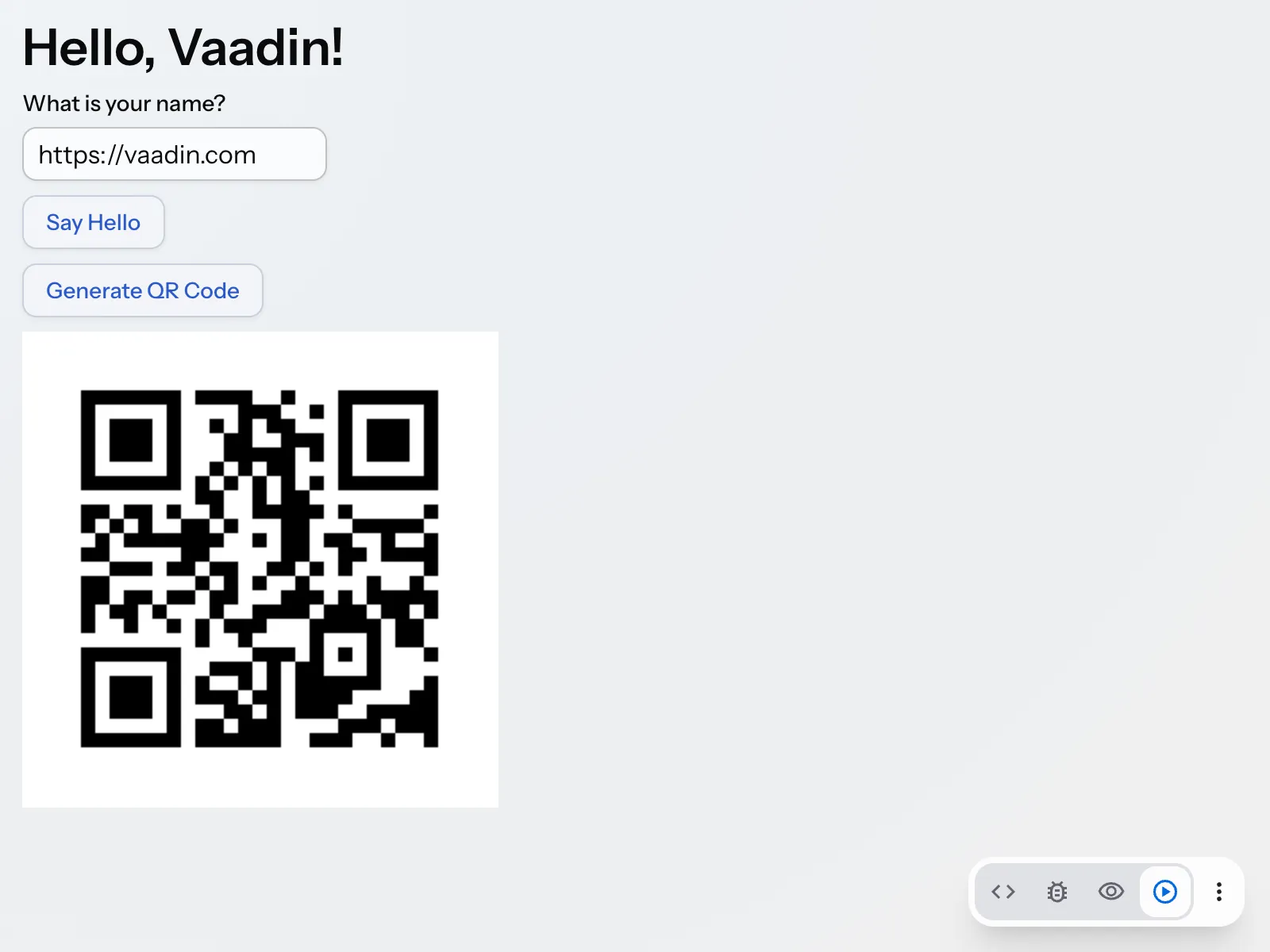
If you click the button with an empty text field, an error message is shown instead.
Having access to the entire Java ecosystem allows you to leverage existing libraries and tools in your Vaadin applications, making development faster and easier.
Running the user interface on the server has other consequences, too. For example, every click on the button is a round trip to the server, and the server keeps the state of the view in its memory. How a Vaadin Application Works explains what this means for your application.
Make a Production Build
Up to this point, you have been running the application in development mode, which is optimized for fast feedback during development. Before deploying your application to production, you should create a production build that is optimized for performance.
Execute the Maven package goal to create a production build. Stop the application, then run the following command from the project directory (on Windows, use mvnw instead of ./mvnw):
Source code
terminal
./mvnw clean packageAfter the build completes, check the target directory in your project. You should find a JAR file named app-1.0-SNAPSHOT.jar (assuming your project is named app).
You can run the production build using the following command:
Source code
Terminal/PowerShell
java -jar target/app-1.0-SNAPSHOT.jarOpen your browser and navigate to http://localhost:8080 to see your application running in production mode. You’ll notice that the Copilot toolbar is no longer visible.
Next Steps
You have now created a simple Vaadin application from scratch, learning some core concepts along the way. Continue with the Tutorial, where you build a complete application with a database, forms, and navigation, one step at a time.
If you’d rather start building an application of your own right away, see Expand Your Vaadin Project for the guides that most applications need next.